Plan Windows battery settings for a real workday
Use a repeatable workload and transparent time budget to evaluate Windows power settings without inventing battery-hour claims.
Updated:

Define the work session before changing settings
For a US Windows laptop user, the most useful battery target is a specific session you need to finish. “All-day battery” is too vague if your day combines meetings, document work and travel. Write the tasks and durations first, then use Windows power controls to build a workable plan. This guide does not claim measured battery hours for any laptop.
Microsoft's Windows guide places Energy recommendations and Energy saver within System settings for power and battery, with controls that vary by Windows version. It also describes display brightness and screen or sleep timing adjustments. Follow the section matching your installed version rather than assuming every screenshot or menu label applies to your machine. Start by noting the original settings so a change can be reversed.
Microsoft: battery saving tips ↗
Build a time budget that includes the gaps
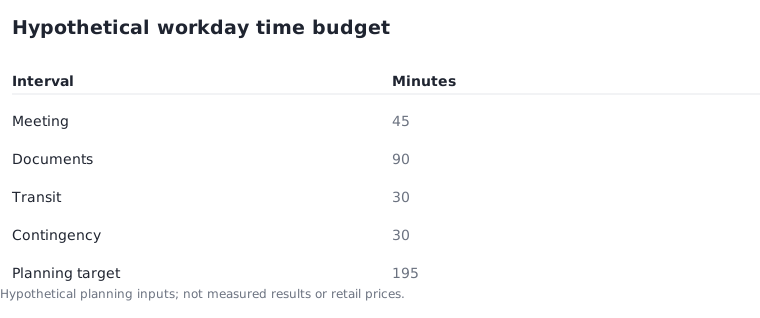
Consider a hypothetical schedule with a 45-minute meeting, 90 minutes of document work and 30 minutes in transit without an outlet. Adding those intervals gives 165 minutes. If you choose a personal 30-minute contingency, your planning target becomes 195 minutes. The contingency is your assumption, not a manufacturer recommendation or a measured battery reserve.
Now separate activities that require the display from gaps when you can stop working. A screen that stays active through a break belongs to a different test condition from a screen that turns off. Do not subtract the break from your required away-from-power interval just because the laptop may use less energy during it. Time away from an outlet and active computer work are related but different entries in the plan.
Compare one change under similar conditions
Set up a small repeatable trial with your actual applications. Record starting charge, duration, screen brightness, network use and what the machine was doing. Try one change at a time so you know what changed between sessions. Use the computer normally enough that the result resembles your intended work rather than an artificial idle test.
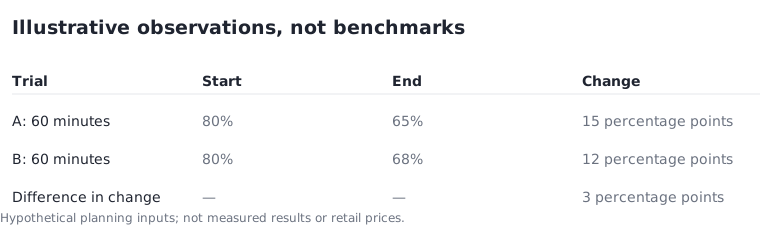
For an illustrative calculation, suppose your own 60-minute trial starts at 80% and ends at 65%. The observed change is 15 percentage points. That is all the example establishes. Multiplying it into a guaranteed full-day runtime would assume an unchanged workload and a perfectly uniform relationship that the trial has not demonstrated. A second hypothetical trial ending at 68% has a 12-point change, three points less; it still is not a benchmark for other devices.
Include accessories in the mobile plan
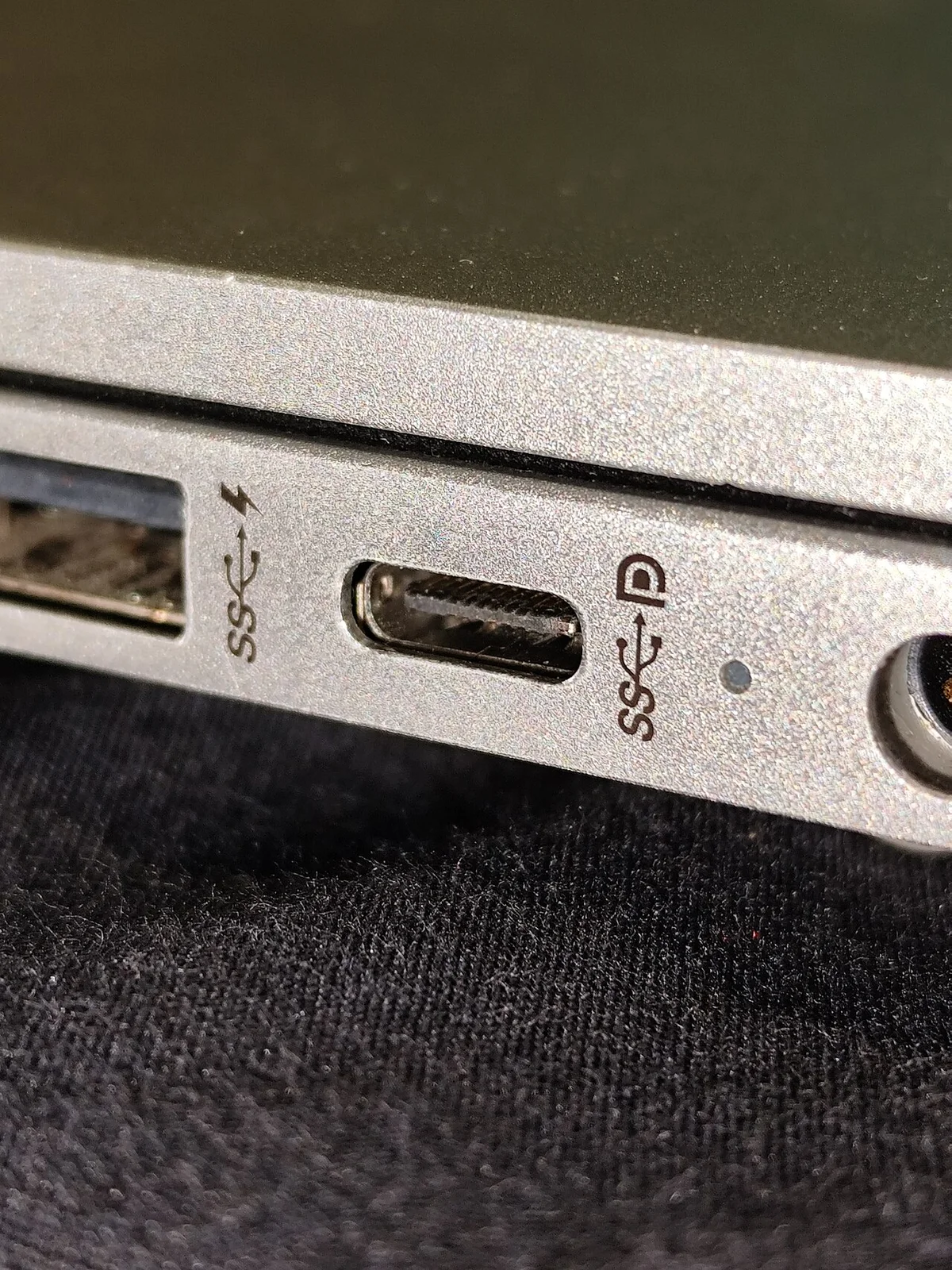
List what stays attached during the trial. A drive, connected phone or other peripheral can make the arrangement different from a bare laptop. The USB-C photograph is a reminder to record attached equipment; it is not a measurement of that port's consumption. If a device is essential to the work, removing it merely to produce a better-looking result defeats the purpose of the test.
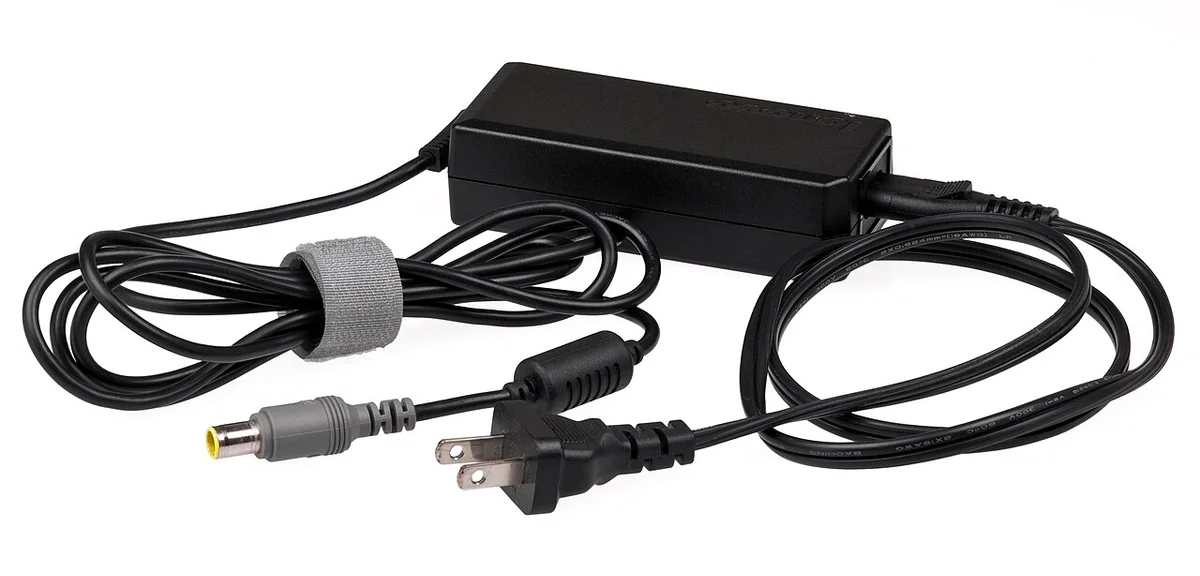
Also decide what charging equipment will travel with you. A historical barrel-plug adapter illustrates why the wall-side and device-side connections both matter, but it is not compatible with every laptop. Verify the exact supported travel arrangement and carry only what your plan needs. A claimed nearby outlet is not a reliable fallback unless you can actually use it during the relevant part of the day.
Use a stop rule instead of an optimistic extrapolation
Compare the observed work session with the 195-minute target in the hypothetical schedule. If a relevant test reaches only 170 minutes before you must recharge, the shortfall is 25 minutes. The practical choices are to arrange a charging opportunity, reduce or move a task, or choose equipment that meets the requirement. Do not rename a shortfall a success by silently removing the contingency after the test.
If runtime has changed substantially, Microsoft's separate battery-care and report guidance can help you inspect estimated capacity. Keep that investigation distinct from changing Windows settings. Finish with a saved baseline, the change you tested and whether the planned session was completed. That record gives you a defensible power plan while leaving uncertain battery performance clearly uncertain.