Build battery-care habits around the way you use your laptop
Create a practical charging and storage routine without turning suggested charge ranges into guaranteed battery-life claims.
Updated:

A routine is more useful than chasing a perfect percentage
For a US laptop owner, battery care is a repeatable way of using and storing the machine, not a promise that one charging ritual will preserve it indefinitely. Microsoft's guidance suggests a moderate charge range around 20% to 80% when practical, supported Smart charging and avoiding excessive heat. For storage, it suggests roughly 40% to 60% rather than leaving the device completely full or empty.
Use those recommendations as operating guidance while keeping the machine useful. If tomorrow's work genuinely requires a longer unplugged session, plan for that requirement rather than treating a percentage target as a reason to miss the work. This guide offers a personal routine and a worksheet; it does not predict a number of added years or a measured improvement for a particular battery.
Distinguish the charger from the energy reservoir
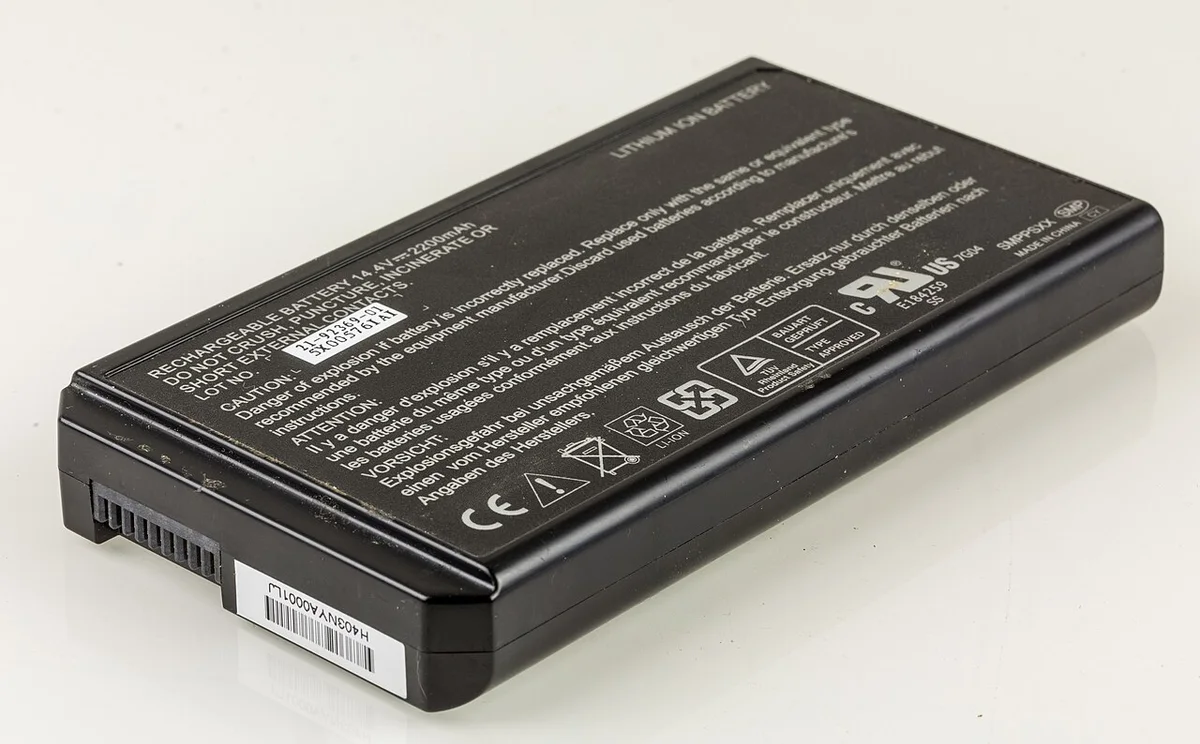
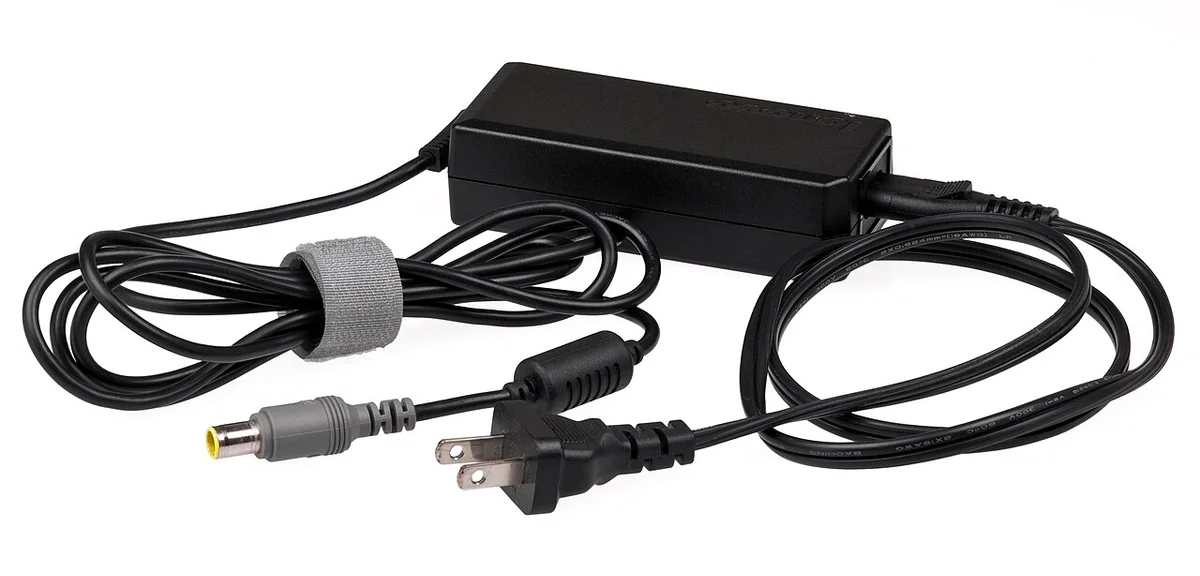
The external adapter and the internal battery are different parts of the system. A charger label describes the power equipment, while a battery label describes the pack. A photograph of an older removable pack is useful for that distinction, but it is not an invitation to remove the battery from a modern computer. Follow the exact model's documentation for any service operation.
Make an inventory of the equipment you actually use: the supplied charger, any travel charger and the dock that may also power the laptop. Record which arrangement belongs at your desk and which belongs in your bag. When a symptom appears only with one arrangement, that record helps you explain the situation without automatically blaming battery wear. Connector fit alone is insufficient evidence of supported charging behavior.
Use a weekly plan that fits your real schedule
Here is a hypothetical planning example rather than a battery-performance claim. Assume you work at a desk on four days and away from outlets on one day. That is five workdays, with one out of five, or 20%, needing a dedicated mobile-power plan. The useful action is to prepare for that day, not to impose the same charging schedule on every day.
Write down when the laptop must leave the desk, how long it will be away and where charging is genuinely available. If the day includes two 90-minute sessions and a 30-minute transfer, the required unplugged interval is 210 minutes. That number is a schedule requirement, not a prediction that the computer can meet it. Validate it with your own workload and keep a charging alternative if the result is uncertain.

Treat long storage as a separate situation
Before putting a spare laptop away, separate storage preparation from ordinary overnight use. Microsoft's suggested storage range is 40% to 60%. In a simple example, a displayed 50% sits inside that range: it is 10 percentage points above the lower end and 10 below the upper end. That arithmetic does not reveal the pack's health or how quickly it will discharge while stored.
Attach a short note with the storage date, approximate charge and the date you intend to inspect it again. Choose a cool, dry location and keep the device accessible rather than burying it where a problem would go unnoticed. Do not invent a universal monthly discharge rate or assume that every laptop should be left unattended for the same interval; the manufacturer's instructions and the observed device matter.
Microsoft: caring for your battery in Windows ↗

Keep care, runtime and safety in different columns
A battery-care routine concerns how the device is treated over time. Runtime settings concern the amount of work it can do during a particular session. Microsoft provides a separate Windows settings guide for the latter. Keeping those ideas apart avoids a common mistaken conclusion: a longer session after changing brightness does not prove that lost battery capacity has been restored.
Stop using a device with a visibly expanding battery and seek the manufacturer's service route; do not press it flat or puncture it. For normal operation, review your routine when your schedule changes, when you replace a charger or when a previously reliable work session becomes difficult. Record the change before shopping for another accessory. A small, consistent record is more useful than a rigid ritual with no connection to your needs.
Microsoft: battery saving tips ↗