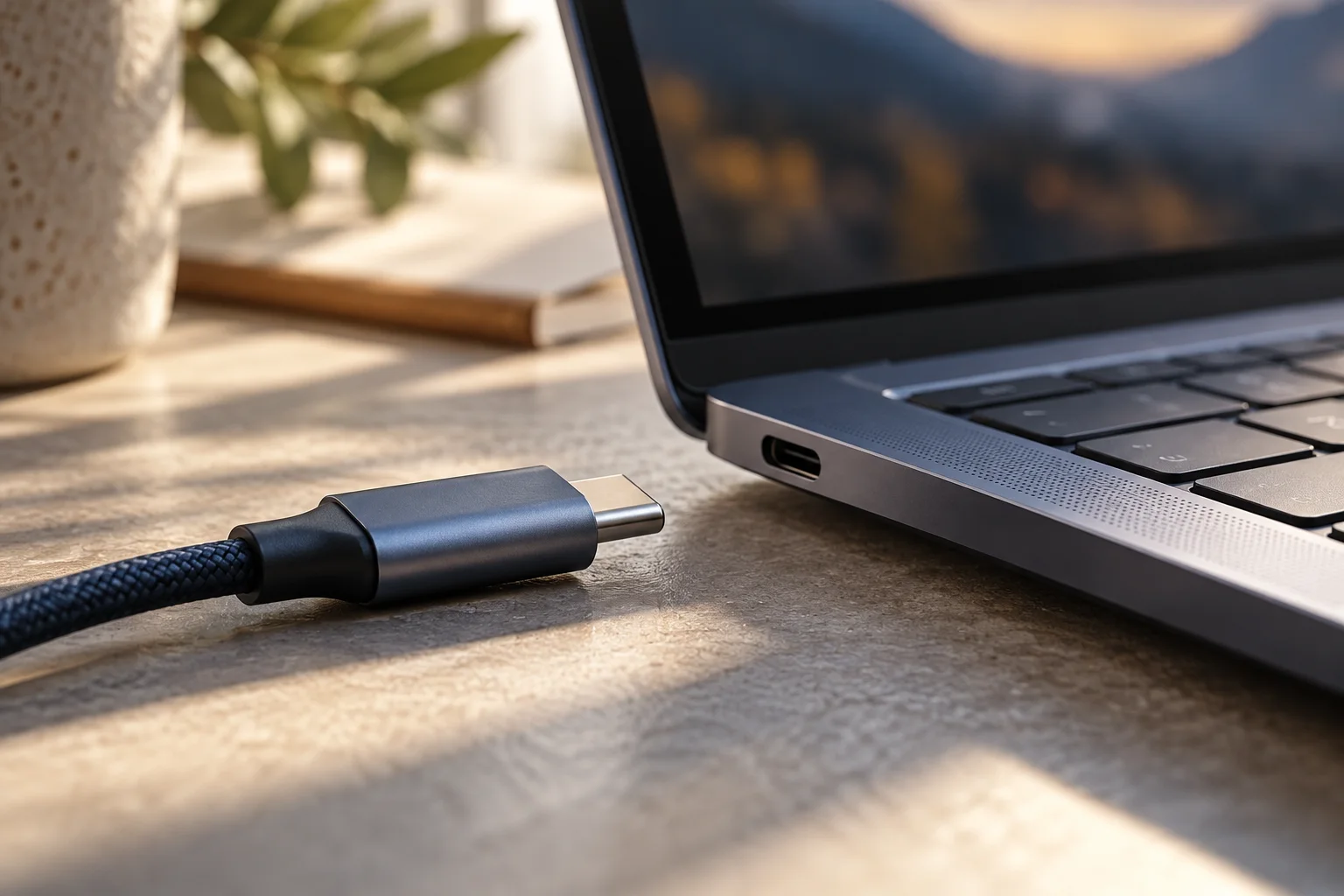
Build a Thunderbolt 4 dock checklist before buying
Map the host, displays, power and peripherals before deciding which Thunderbolt 4 dock belongs on your desk.
Updated:
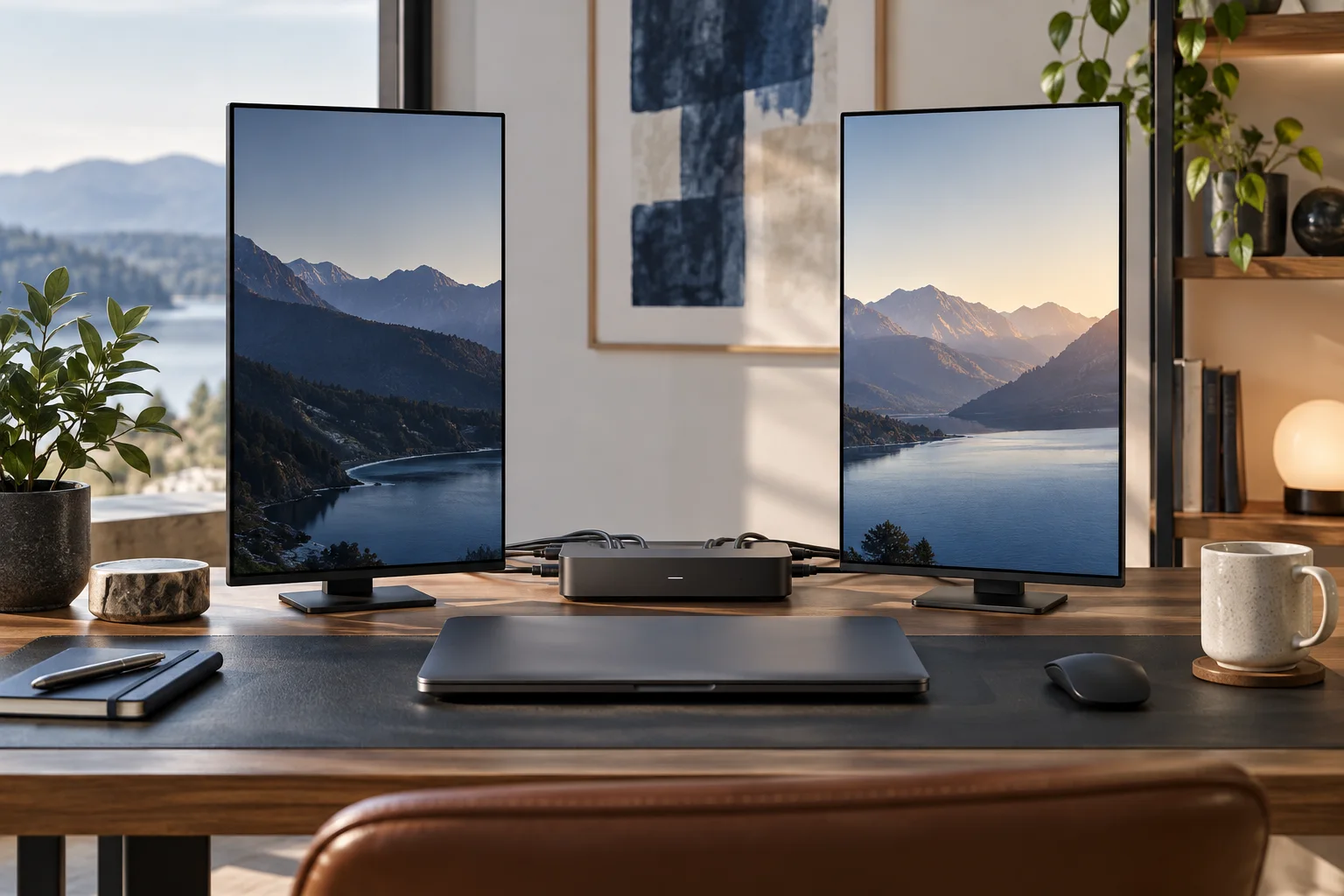
Start with the host, not the number of sockets
For a US laptop buyer, a useful Thunderbolt 4 dock shortlist starts with the exact computer and the displays it must drive. A dock with more connectors cannot manufacture a feature the host does not provide. Write down the laptop model, operating system, host-port specification, monitor models and required charging arrangement before comparing accessories. That single inventory prevents a visually impressive dock from becoming the wrong purchase.
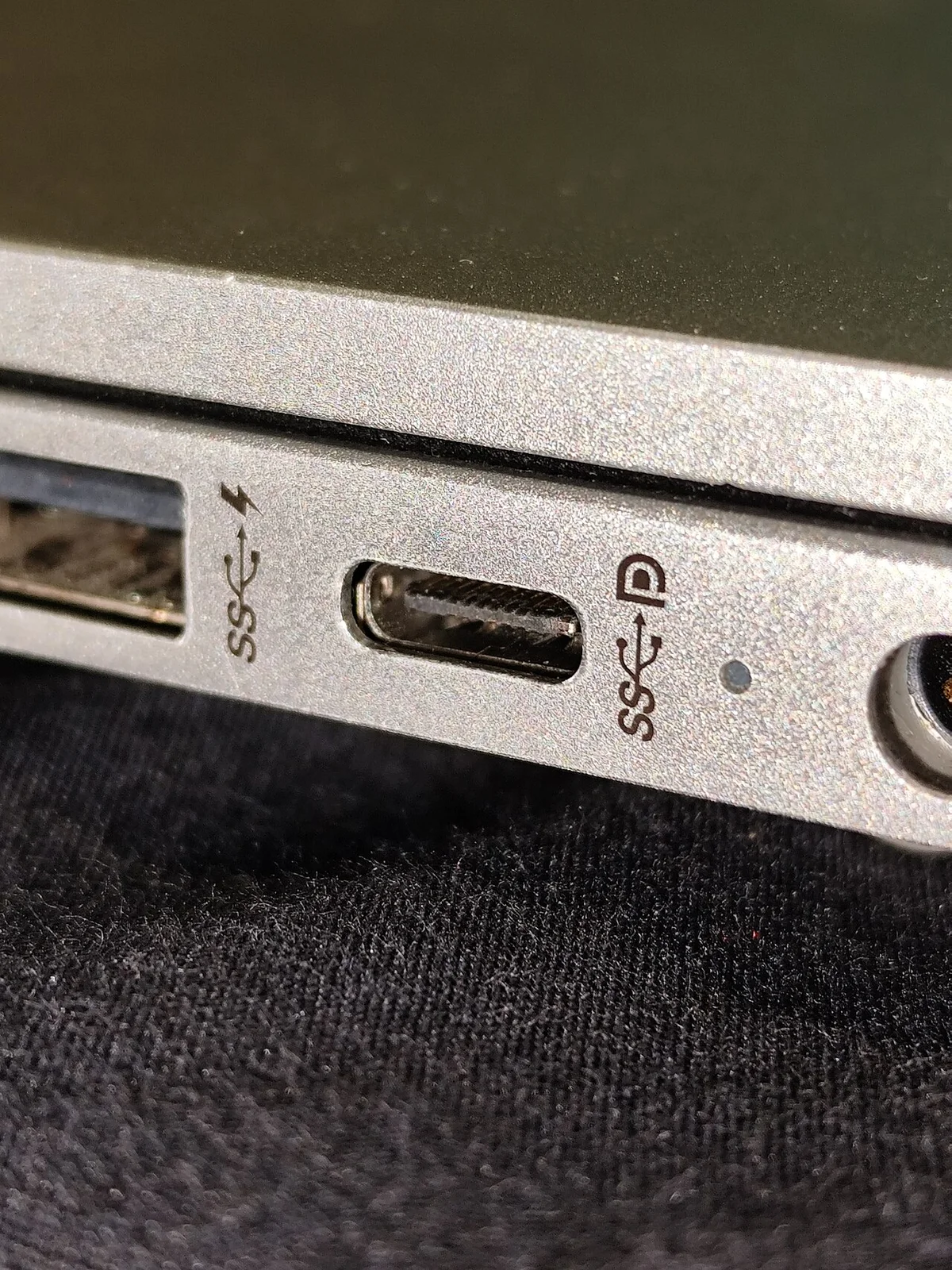
Intel describes Thunderbolt 4 as a 40 Gbps interface and documents support for up to two 4K displays at 60 Hz through a compatible dock or adapter. These are interface capabilities under compatible conditions, not a measured file-copy speed or a promise that every USB-C computer will behave identically. Treat a connector photograph as identification help, then use the actual device specifications for the capability decision.
Intel: Thunderbolt 4 capabilities ↗
Give every display a complete route
Draw one line for each screen: laptop port, host cable, dock output, display cable and monitor input. Mark the desired resolution and refresh rate beside the line. If a retailer describes only the number of HDMI sockets, your worksheet still has an unanswered question: which display combinations work simultaneously with your host?
For example, assume a desk needs two separate 4K 60 Hz workspaces. That is a requirement for two independent video paths, not simply two physical plugs. Record whether the dock's documentation names that combination. A mirrored image on two panels does not satisfy a requirement for separate documents on separate desktops. Apple's display guidance is an important exception to blanket dock claims: adding a hub does not raise the Mac model's maximum supported display count.
Apple: MacBook Air external display support ↗
Keep power delivery separate from video
The dock's own power supply and the power available to the laptop are different entries. Do not copy the largest wattage on a product page into the laptop-charging column without identifying what it measures. Record the manufacturer's stated host power delivery, the laptop's charging guidance and whether its normal workload still requires its original adapter.
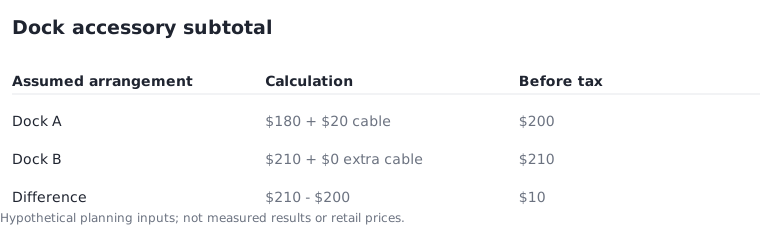
Suppose, purely as a comparison exercise, dock A costs $180 and requires a $20 display cable while dock B costs $210 with that cable included. The comparable accessory subtotals are $200 and $210 before tax and shipping. A is $10 lower only if both configurations satisfy the same host, display and power requirements. An incompatible $200 arrangement is not a saving. These are assumed amounts, not current offers.
Plan ports for the devices that stay connected
Count the keyboard, mouse receiver, wired network adapter, storage drive and specialist peripherals you actually use. Separate permanent devices from occasional ones. Reserve an accessible socket for a device you connect during the working day; a rear-only connector may be inconvenient even when the total count is sufficient.
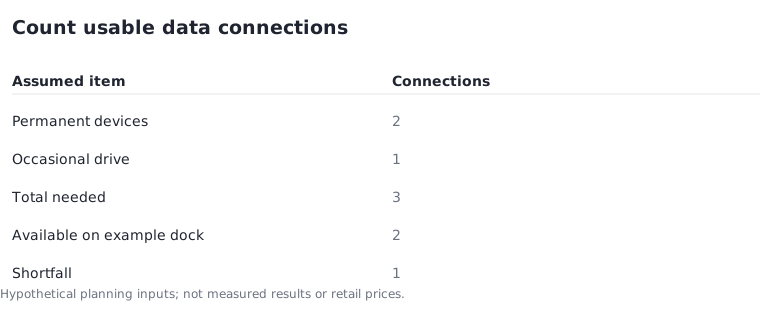
Now test a hypothetical port inventory: two permanent USB devices plus one occasional drive require three usable data connections. A dock with two suitable connections has a shortfall of one. Adding an unpriced extra hub would change the earlier cost comparison, so leave the result unresolved until you specify it. Avoid assuming that every socket supplies identical data rates or power simply because its shape matches.
Make the first setup a controlled acceptance check
Before keeping the dock, connect the planned equipment and verify each requirement separately. Start with one monitor, add the second, attach the required peripherals, then test the laptop's normal sleep and reconnect routine. Record what worked and the exact cable used so a later cable substitution is not mistaken for a dock failure.
Retain the order details and seller return terms while evaluating the setup. Your final shortlist should identify a documented compatible host, the required display combination, an adequate charging arrangement and enough suitable ports. Return to Intel's interface explanation and the host manufacturer's display page when a listing makes a broader claim than its compatibility table supports.