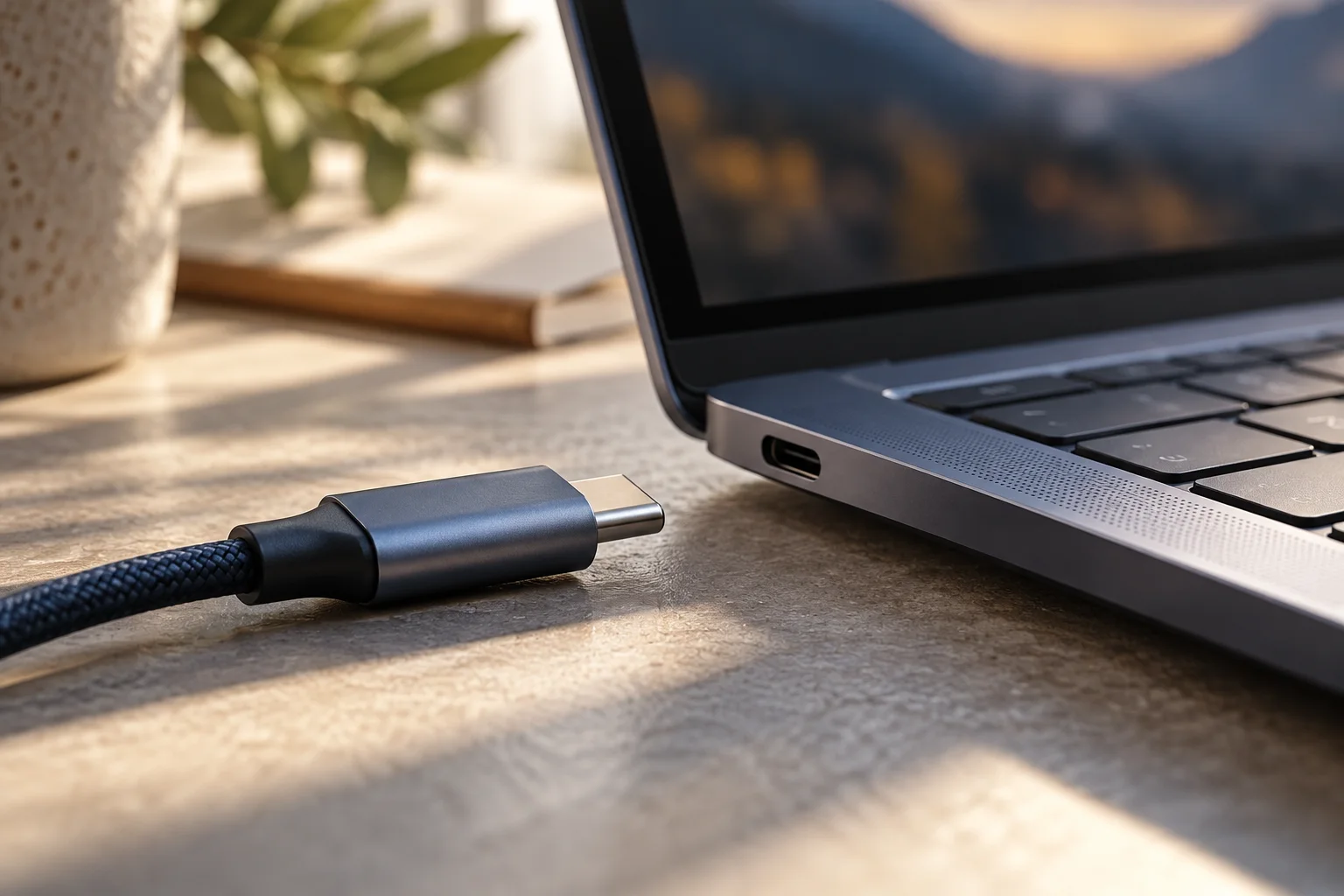
Make a backup plan before moving to a new laptop
Separate backup, restore and system recovery, then verify representative files before retiring the old computer.
Updated:

Define what must survive the move
Before moving to a new laptop, list the files and settings you cannot afford to lose. A backup is a copy; restoring retrieves data from a copy; system recovery addresses a broader set of operating-system problems. Microsoft's guidance separates these concepts, and your migration plan should too. A recovery option should not be assumed to contain every personal file you care about.
Begin with the current computer still available. Record essential documents, photos, project files and any application-specific export requirements. A browser bookmark list is not a complete inventory of a person's working environment. Give each category an owner and a destination so shared household files do not disappear between individual account plans.

Choose a method for each category
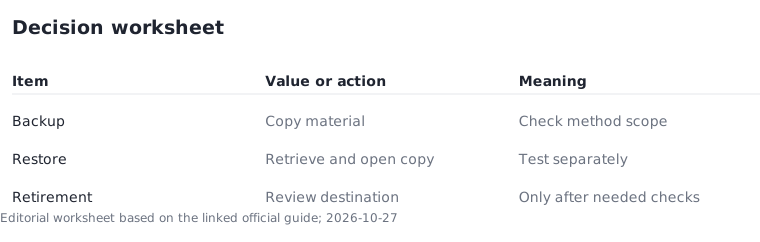
Use a worksheet with columns for current location, backup destination, last successful copy, and restore test. External storage and cloud storage can serve different roles, but neither should be treated as complete merely because a device is plugged in or an account is signed in. Confirm the scope of the method you select using its current documentation.
For specialized applications, identify the supported export or migration method before moving files by hand. This guide does not promise that copying an application folder transfers its license, installation, or settings. Keep account-access and installation information available through an appropriate secure method, and avoid putting passwords into the public planning tools on this site.
Test a restore before relying on the copy
Pick representative files from the important categories and restore them to a separate location. Open them with the application you intend to use on the new computer. The test should demonstrate usable contents, not just a matching filename or an apparently successful progress bar.
Do not overwrite the original file during an initial test. Keep the old computer and the backup intact while you compare the restored result. If a project depends on linked media or companion files, test a whole representative project rather than a single document. This is a practical verification method, not a guarantee that every possible failure has been ruled out.
Track completion without overstating it
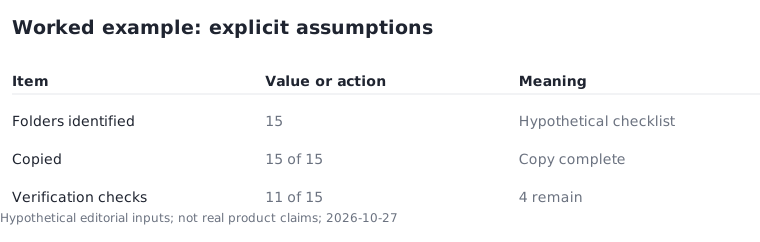
Here is a hypothetical checklist calculation. You identify 15 important folders, copy all 15, and successfully test a representative file from 11. Copy completion is 15 of 15, but verification completion is only 11 of 15; four checks remain. Calling the entire migration verified would hide that unfinished work.
Add a result note to each test and resolve failures before retiring the source computer. If one folder contains several distinct file types, a single successful sample may be insufficient for your situation. Adjust the test set to the importance and variety of the material rather than chasing a percentage that looks reassuring.
Retire the old device only after a separate review
The last step is a retirement review, not a deletion reflex. Confirm that essential files open, necessary applications are available, peripherals work, and account access is established on the destination. Then follow the relevant manufacturer's instructions and any workplace policy for resetting or disposing of the old device.
Keep the backup plan running after migration. A new laptop is still capable of failure, accidental deletion, or loss. Record a reasonable review schedule for your own use and test recovery again when you change the backup method. The successful outcome is a working new setup plus a recoverable copy of important data, not simply an empty old computer.
Use 3 steps before retiring the source: complete the intended copy, test representative restored material, then review application and account access on the destination. A successful copy is only the first of these steps.