Plan laptop storage around files you actually keep
Estimate storage from your current categories, expected growth and offline needs without confusing SSD capacity with memory.
Updated:

Measure the workload already on your desk
Choose laptop storage from a file inventory rather than from the biggest number in a product title. On Windows, the Storage settings view separates categories such as applications, temporary files, and system use. Use that breakdown as the starting evidence for your own worksheet. A computer used mainly for small documents and one holding a local photo archive should not inherit the same assumption simply because both are laptops.
For a US buyer, record the capacities in the units shown by your system and the seller, and avoid claiming that a marketed drive size will all be available for personal files. Keep RAM in a different column. Adding SSD capacity does not increase the amount of working memory installed.


Separate files you own from files you need offline
Create three groups: files that must be available offline, files you actively edit, and material you can archive elsewhere. Put a reason beside each assignment. An old project needed for an occasional reference has a different role from footage required for tomorrow's editing session. The distinction is about your workflow, not an instruction to delete either group.
Also list applications and their working space. Do not assume the size of a saved project is the entire space an application may use while working. Consult the relevant application's requirements for that detail. If your current computer is nearly full, its present free-space number is evidence of pressure, not evidence that the same small capacity will comfortably serve a new machine.
Calculate a transparent planning total
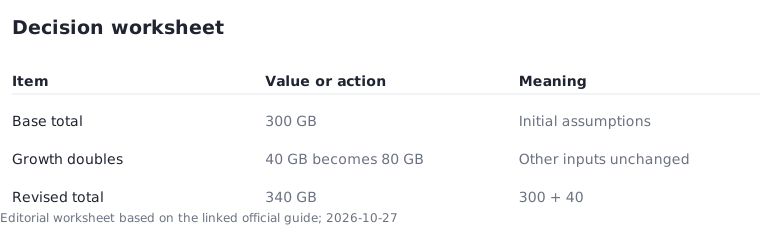
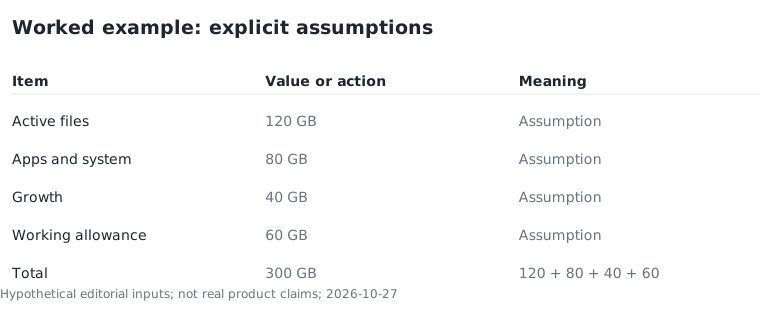
Consider a hypothetical worksheet with 120 GB of active files, 80 GB allocated for applications and system needs, 40 GB of expected new material, and a chosen 60 GB working allowance. The planning total is 120 + 80 + 40 + 60 = 300 GB. Every number in this example is an assumption. The 60 GB allowance is not a universal manufacturer recommendation, and 300 GB is not a claim about the formatted capacity of a particular drive.
Replace the assumptions with your measurements and workload requirements. Keep current files and expected growth separate so you can see what changes the result. If expected growth doubles from 40 to 80 GB while everything else stays fixed, the planning total becomes 340 GB. That is a useful sensitivity check before comparing configurations.
Account for external drives without calling them a backup
An external drive can change what must live on the laptop, but it also introduces a device to carry, connect, and protect. List the files assigned to it and whether you need them while away from your desk. A plan that depends on leaving the drive at home may not suit a mobile editing workflow.
Moving a file to an external drive does not by itself create a second copy. Capacity planning and backup planning are separate jobs. If the only copy is on that drive, a loss or failure can still remove access. Include a separate backup method in your setup budget and test recovery instead of assuming that an extra storage device automatically solves both problems.
Compare exact configurations at checkout
Once your worksheet is complete, compare the actual storage options offered for the shortlisted model. Establish whether an upgrade is supported before assigning future savings to it. A generic repair photograph cannot prove that your exact computer accepts a replacement drive or that doing so fits the seller's terms.
Save the capacity, configuration identifier, included accessories, and final quoted amount. Your decision should state what the internal drive must hold, what lives elsewhere, and which assumptions need a later review. Revisit the worksheet when your work changes; a new video project or offline library can alter the answer more than a small difference in advertised processor speed.
Use 3 steps for a capacity decision: measure current categories, add explicit growth and working-space assumptions, then compare the exact configuration offered. Keep the worksheet so each assumption can be revised independently.