Options when a Chromebook reaches its final update
Make a practical transition plan that distinguishes a working device from a device still receiving software and security updates.
Updated:
A working computer and a supported computer are different
A Chromebook may still turn on after its final automatic update. That does not mean its update status is unchanged. Google's support guidance distinguishes continued operation from receiving additional software and security updates. Begin by confirming the update schedule shown on your own device, then plan around the jobs you rely on it to perform. This is a transition checklist, not a claim that every older computer fails on a particular day.
For a US household, the decision can involve several people and accounts. Write down who uses the Chromebook, which tasks are essential, and where each person's files are stored. That inventory is more useful than immediately shopping for a replacement without knowing what must move.
Confirm the message rather than guessing from age
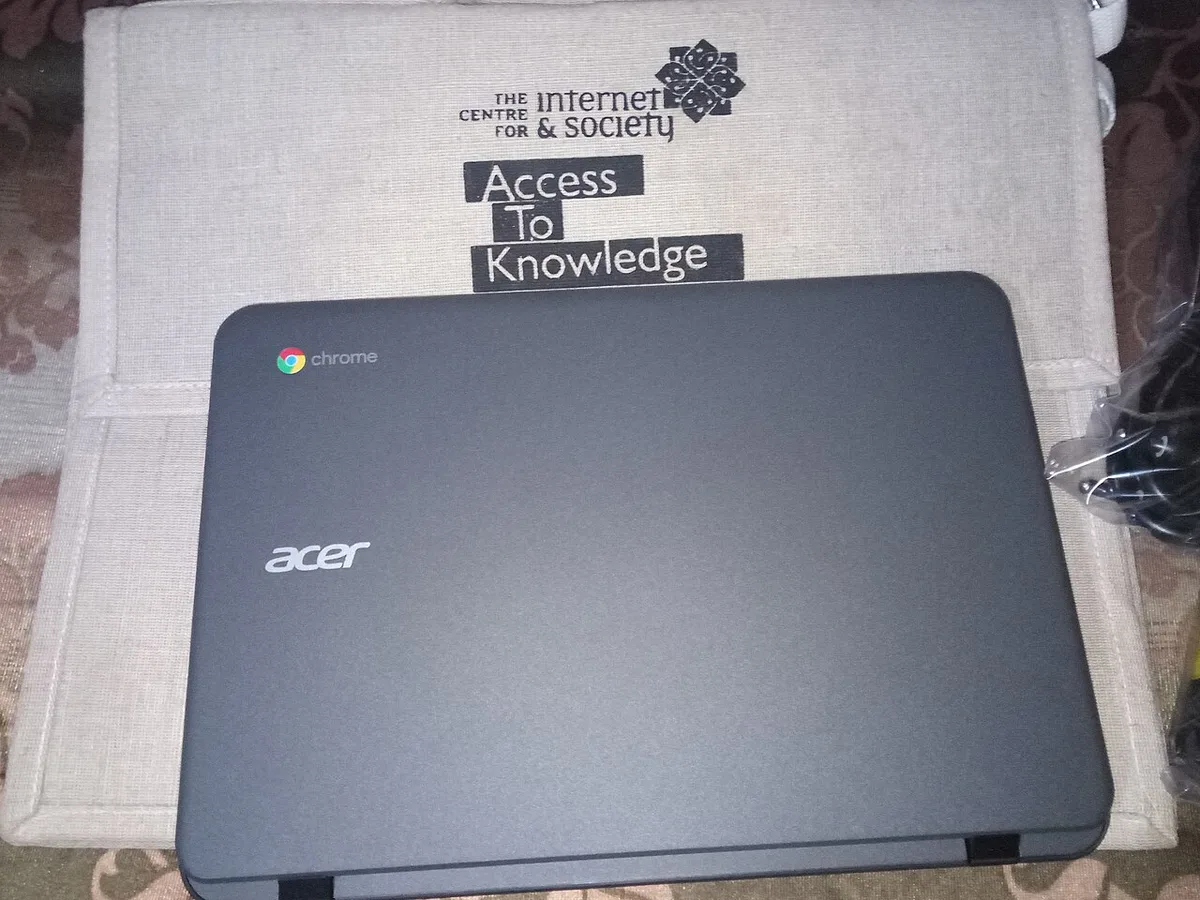
Open the device's ChromeOS information and additional details to locate its update schedule, following Google's current instructions. Record the exact model and displayed date. A remembered purchase year is not an adequate substitute. For a school or work device, the administrator may control updates, so follow that organization's process rather than attempting to change its management settings.
Keep a screenshot or written record for your own planning. Do not treat another owner's online screenshot as evidence about your device. Two Chromebooks with similar cases may have different platforms and support dates. The purpose of this step is to remove ambiguity before you choose a next action.
Sort tasks into a migration order
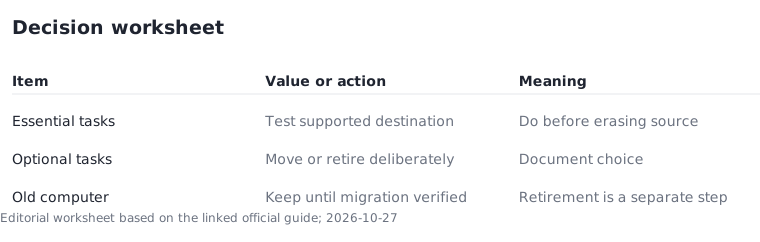
Make three groups: tasks that must continue without interruption, tasks you can temporarily do elsewhere, and tasks you no longer need. Put the first group at the top of a migration checklist. A family member's essential course portal may need attention before an old collection of optional bookmarks. These priorities are personal examples, not a statement that any particular website is compatible with an unsupported browser.
Next, identify a supported destination for the essential work and test that work there. Sign-in access alone is not a complete test: open a needed document, perform a representative task, and confirm any required peripheral works. Keep the old device intact until the transition has been verified.
Plan time and cost with explicit assumptions
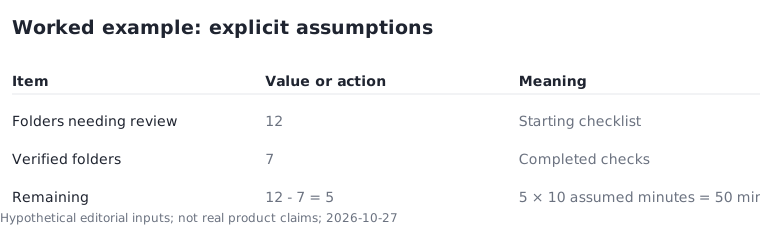
Here is an organizational example rather than a quoted service price. Suppose there are 12 essential folders to review and you have verified 7 on the destination. Five remain. At an assumed 10 minutes per folder, set aside 50 minutes for that review. The estimate is not a transfer-speed promise; unusually large files or account-access problems can change it.
Add any actual replacement-device, accessory, or storage costs only after obtaining current amounts. Do not call a replacement free because you already own another computer if that computer still requires an accessory or service to complete the workflow. Conversely, do not assume a new purchase is necessary before checking what supported equipment is already available.
Finish the transition before disposal
Google describes upgrading and continued use as options, while explaining the absence of further updates. Choose with that limitation visible and follow any school or employer requirements. This guide does not certify continued online use as risk-free. If the device holds sensitive work data, use the organization's instructions for migration and retirement.
After confirming the destination works, make a separate retirement checklist for local files, account access, and the appropriate reset or disposal process. Do not erase the only copy of a file as part of tidying up. The outcome is complete when essential work is available on the chosen destination and the old device has a deliberate, documented next use or retirement plan.
Physical condition remains a separate choice after support status is known. Inspect the keyboard if you plan to keep using the hardware for an allowed purpose; a usable keyboard does not extend the update period.