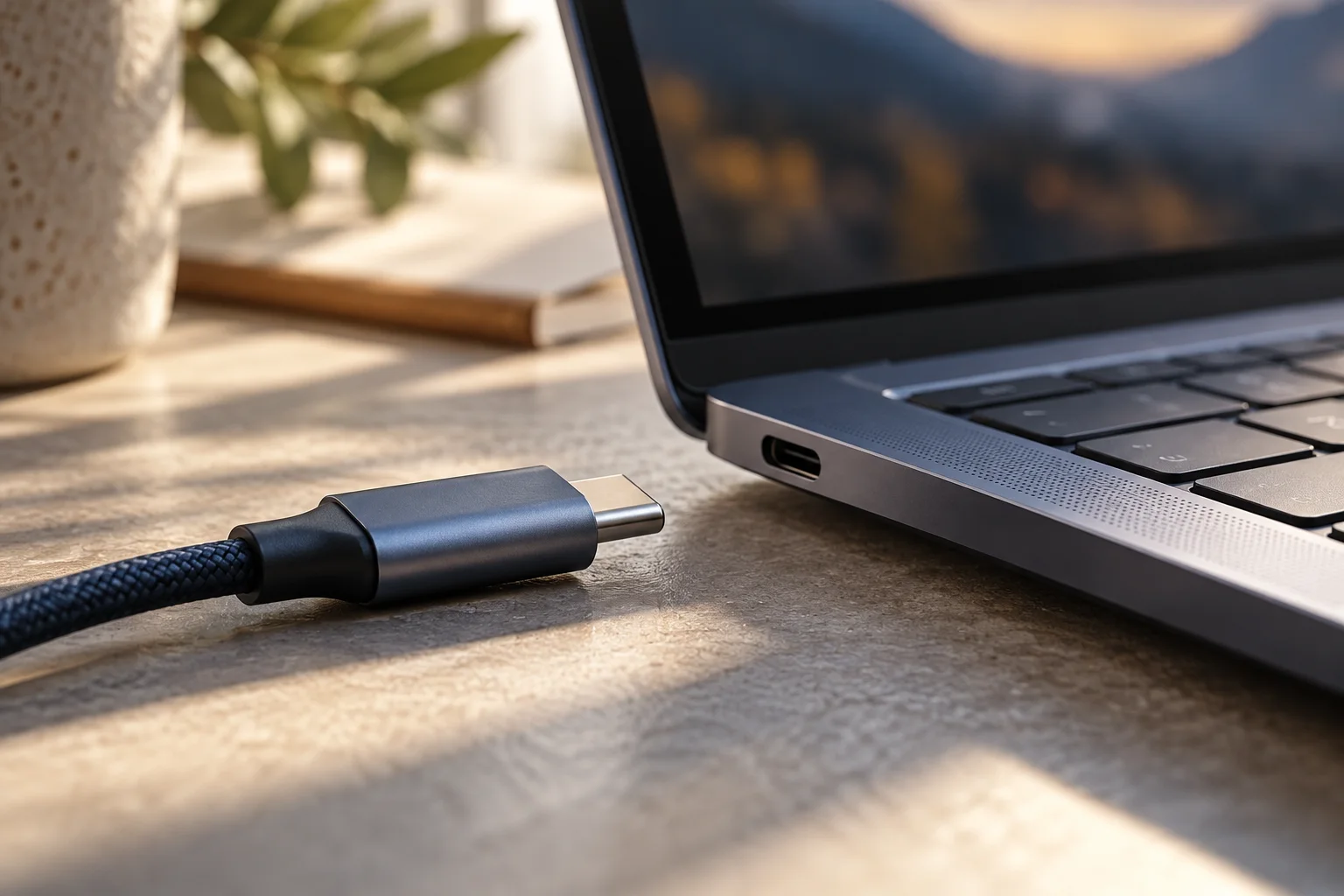
Match a MacBook Air generation to your external displays
Separate M3 closed-lid requirements from M4 and M5 display support, then budget for the complete desk setup.
Updated:

The chip generation changes the answer
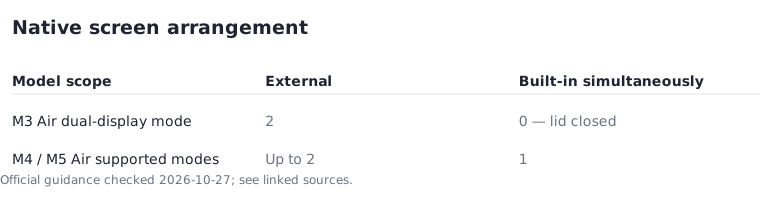
For US shoppers comparing MacBook Air listings, the answer to “will it run my two monitors?” depends on the exact generation and the way you want to work. Apple's current guidance says M4 and M5 Air models support up to two external displays alongside the built-in screen, within supported resolution and refresh-rate combinations. Its separate M3 instructions require closing the lid to use two external screens.
That difference matters if you intend to keep a video call on the laptop while documents occupy both desk monitors. Do not treat “supports two displays” as a complete description of that workflow. Write “two external plus built-in, all independent” or “two external with lid closed” at the top of your shortlist so the listing is judged against the arrangement you actually need.
Apple: MacBook Air external display support ↗
Identify the machine before interpreting a seller photo
Apple's model identification page directs you to About This Mac and links the specifications for individual Air generations. Ask a seller to provide the model information rather than inferring the chip from a silver case or a familiar keyboard. Historical Air models can look broadly similar in a small listing photograph while having different connection limits.
Keep the model identifier, chip and display requirements together in your comparison notes. If the information is incomplete, the listing is not ready for a confident display-compatibility decision. For older generations outside the models discussed here, follow the matching technical-specification link instead of extending the M4 or M5 result backward. A model-specific limit is more useful than a general claim that an adapter “works with Mac.”
Apple: identify your MacBook Air ↗
Understand what closed-lid operation adds
Apple's M3 procedure requires external input devices, power and macOS Sonoma 14.3 or later on MacBook Air. Opening the lid while both external screens are attached disconnects the secondary external display. The built-in keyboard photograph illustrates a practical consequence: closing the lid removes that keyboard from normal use, so an external keyboard and pointing device belong in the plan.
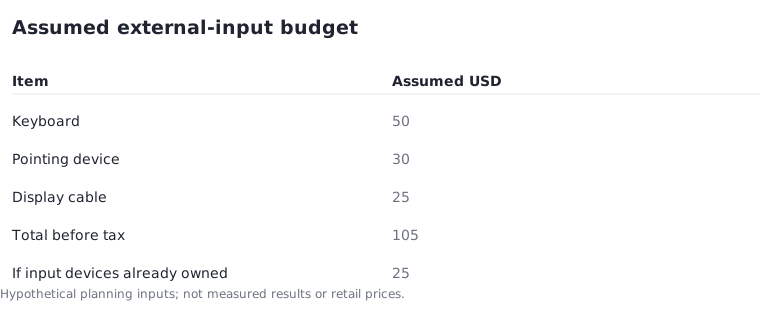
Here is an assumed desk budget, not a retail quote. If an external keyboard costs $50 and a pointing device costs $30, the additional input-device subtotal is $80. Add an assumed $25 display cable and the accessory subtotal becomes $105 before tax. If you already own compatible input devices, the extra purchase subtotal in this example falls to $25. Ownership changes the budget without changing the computer's display limit.
Apple: dual displays with M3 MacBook Air ↗

A hub organizes connections without adding native screens
Apple explicitly notes that a supported hub or daisy chain can consolidate connections but does not increase the model's maximum display count. Therefore evaluate two separate questions: can this connection route carry the required signals, and does the computer support the requested number of screens? A positive answer to the first cannot substitute for the second.
Create a line for every monitor showing its model, intended resolution, intended refresh rate and connection route. Count external panels separately from the built-in panel. In an illustrative two-external-plus-built-in arrangement, two plus one equals three active screens. In the M3 closed-lid arrangement described above, two plus zero equals two. Those counts explain the workflow difference without claiming that a larger count makes every task faster.
Apple: MacBook Air external display support ↗
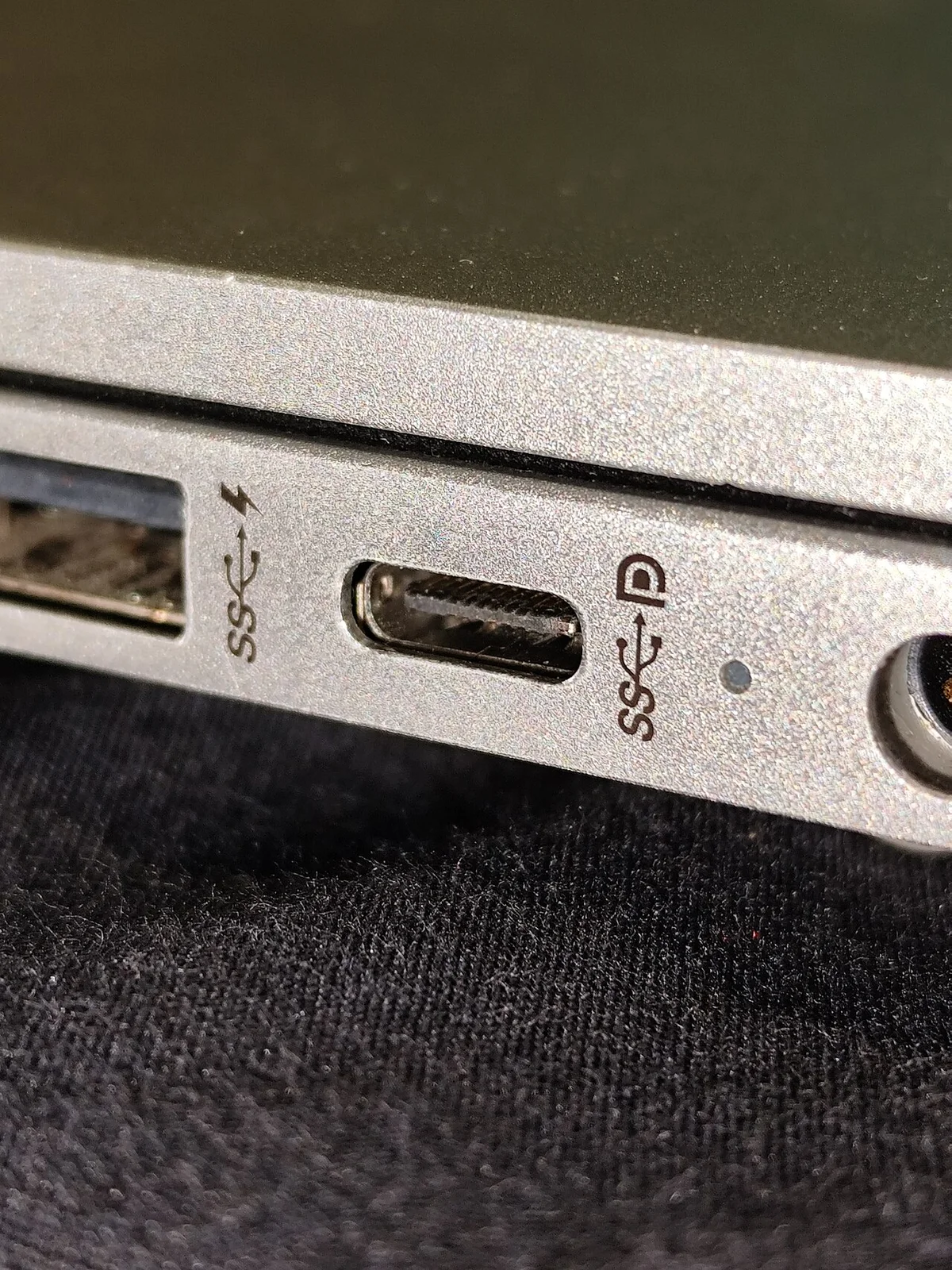
Validate the arrangement before the return window closes
Set up the exact displays and cables you plan to keep. Confirm that the screens extend the desktop rather than only duplicating it. Open your normal documents, place windows where you expect them and try the lid position that belongs to your intended workflow. A successful connection at a lower resolution is not proof of the higher-resolution configuration you meant to buy.
Save the model-specific Apple page with your purchase notes, and use its troubleshooting links if a display remains dark. The next decision is concrete: retain only candidates that support the screen arrangement you wrote at the beginning, then compare portability, memory and complete cost among those candidates. This guide is a compatibility method, not a hands-on review of a current MacBook.